subtitle

Blog

subtitle

PDF Editor

Professional PDF editing tool that lets you edit text,
graphics, and pages while preserving fonts and document
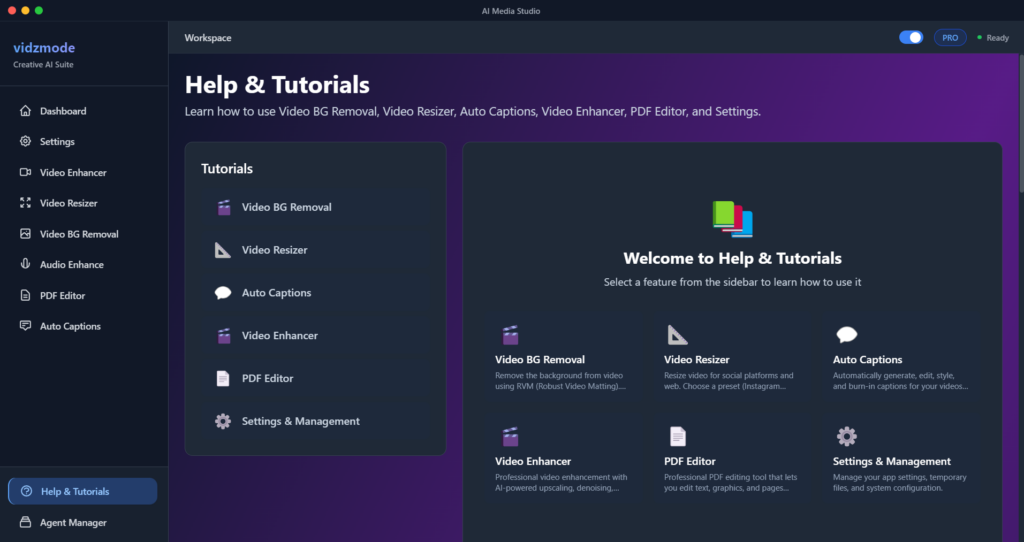

Professional PDF editing tool that lets you edit text, graphics, and pages while preserving fonts and document structure. Perfect for updating documents, fixing typos, and managing PDF content.

Key Features

  • Text editing – edit existing text directly in PDFs
  • Graphics editing – modify images and shapes
  • Page management – add, remove, reorder pages
  • Font preservation – maintains original fonts and formatting
  • Search & Replace – find and replace text across document
  • Multi-page support with thumbnail navigation
  • Zoom controls for precise editing
  • Copy & Paste – copy elements between pages
  • Undo/Redo functionality
  • Metadata editing (title, author, subject)
  • Export edited PDFs with all changes preserved

📋How to Use

  1. 1Navigate to “PDF Editor” from sidebar or dashboard
  2. 2Upload your PDF file
  3. 3Browse pages using thumbnails or navigation arrows
  4. 4Select edit mode: Text, Graphics, or Pages
  5. 5For text editing: Click on text to edit, type changes, press Enter to save
  6. 6For graphics: Click on images/shapes to select and edit
  7. 7Use Search & Replace to find text across all pages
  8. 8Add images by clicking “Add Image” button
  9. 9Reorder pages by dragging thumbnails
  10. 10Use zoom controls for detailed editing
  11. 11Save your edited PDF when done

💡Pro Tips

  • 💡Text editing preserves original fonts and formatting
  • 💡Use Search & Replace for bulk text changes
  • 💡Zoom in for precise text editing
  • 💡Thumbnail view helps navigate large documents
  • 💡Copy & Paste works between pages
  • 💡Undo/Redo helps correct mistakes
  • 💡Metadata editing updates document properties
  • 💡All changes are preserved in exported PDF
  • 💡Works best with text-based PDFs (not scanned images)
  • 💡Large PDFs may take time to load

🔧Troubleshooting

Q: Text not editable

A: PDF may be scanned or image-based. Try OCR first or use graphics editing mode. Text-based PDFs work best for text editing.

Q: Fonts look different after editing

A: Font preservation should maintain original fonts. If issues occur, check that fonts are embedded in original PDF.

Q: PDF loads slowly

A: Large PDFs take time to parse. Wait for full load. Consider splitting large documents into smaller files.

Q: Changes not saving

A: Make sure to click Save button. Check that output file path is valid. Some PDFs may have restrictions.

Best Practices

Use Text mode for editing text content
Use Graphics mode for modifying images and shapes
Use Search & Replace for finding and updating text across multiple pages
Save frequently to avoid losing changes
Use zoom controls for detailed editing work
Thumbnail navigation is helpful for large documents
Copy & Paste elements between pages for consistency
Edit metadata to update document information
Test edits on a copy before modifying important documents
Leave A Comment