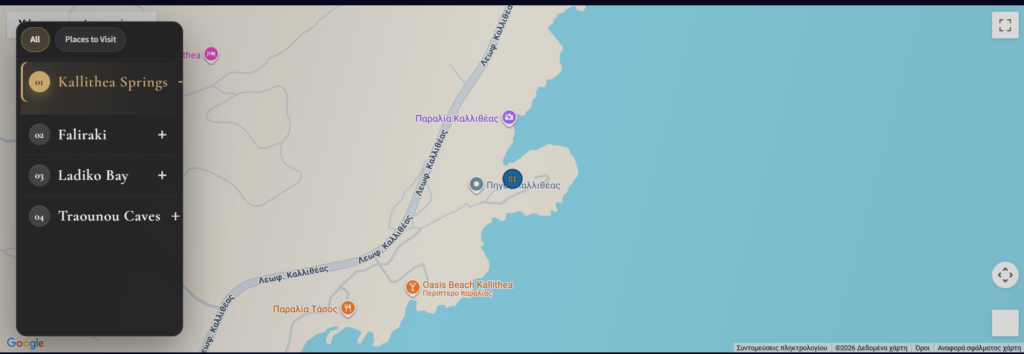
If your WordPress site needs more than a static location image, the **Interactive Map Points & Tabs WordPress plugin** is a practical way to deliver a map experience that looks good and is easy to use. Instead of forcing visitors to hunt for addresses one by one, the plugin combines an interactive Google Map with **clickable markers** and a **synchronized accordion list (tabs)**. When a visitor selects a marker, the related accordion/tab item stays in sync—so people can quickly preview each place and take action (for example, open a link or learn more).
This guide walks you through what the plugin does, who it is for, and exactly how to set it up—plus common questions and SEO-friendly best practices for locations and contact pages.
What the Interactive Map Points & Tabs WordPress Plugin Does
At a high level, the plugin provides:
* A **public map** rendered on the front end using the **Interactive Map block** or the `[interactive_map]` shortcode.
* A set of **Map Points** that site administrators manage from the WordPress dashboard.
* A visitor experience built around **clickable Google Maps markers** and a **synchronized accordion/tabs list**.
Administrators can add locations under **Dashboard → Map Points** (and they can click on the map to place markers). Visitors then browse the map and the accordion/tabs together, which reduces friction and makes your location directory feel more like a guided experience.
Key Features That Make Your Locations Easier to Find
Clickable markers with synchronized tabs
The most important user-facing benefit is the tight connection between the map and the list. Visitors can:
1. Click a marker on the map.
2. Instantly see the matching item highlighted in the accordion/tabs list.
3. Use that list to explore locations without losing context.
This “map + list” pattern is especially helpful for businesses with multiple branches, offices, service areas, showrooms, clinics, or events.
Simple placement via block or shortcode
You have two straightforward ways to embed the map in WordPress pages:
* **Interactive Map block** (Blocks editor)
* **`[interactive_map]` shortcode**
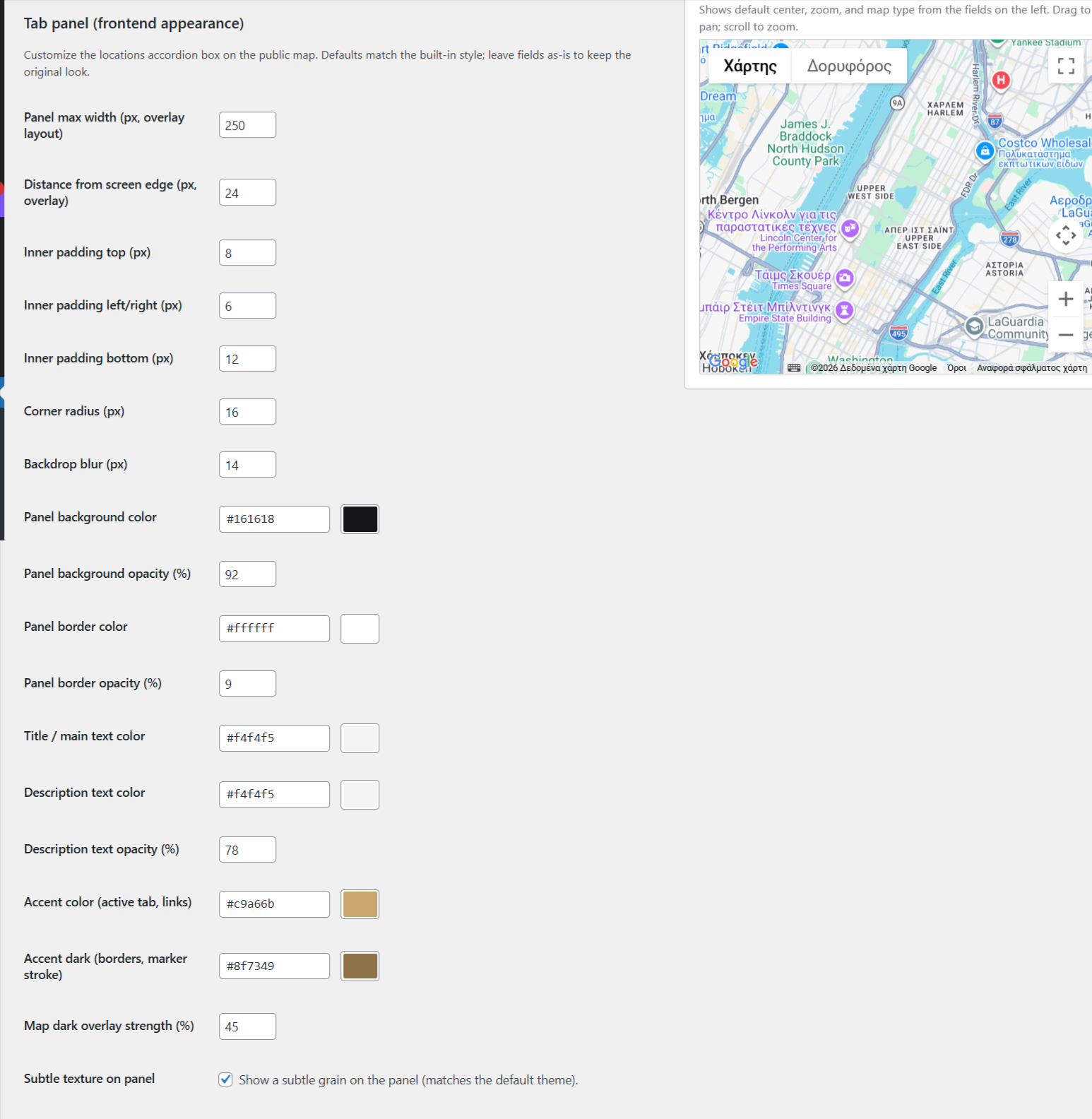
In the block/editor experience, you can also control presentation such as the map’s height and layout style.
Flexible layout options
The plugin supports layout modes designed for different page designs:
* `overlay` layout (map overlays the list area)
* `split` layout (map and list are shown side-by-side)
That means you can match the map section to your theme instead of fighting your layout.
Location management from the dashboard
In the admin area, markers are managed under **Dashboard → Map Points**. The workflow is designed for real-world “location directory” maintenance:
* Add markers by clicking the map.
* Edit details such as title and description.
* Add a link and icons for each location.
* Reorder rows so your tab order makes sense for keyboard navigation.
The result is an admin interface that is practical for day-to-day updates.
Optional address and place search (with extra Google APIs)
If you want visitors (or admins) to enter location data more easily, the plugin can use optional Google APIs:
* **Geocoding API** to fill coordinates from an address (in Map Points).
* **Places API** for place autocomplete/search in Map Points.
These features use the same Google Cloud API key, as long
as you enable and restrict the relevant APIs in Google Cloud.
Why This Plugin Can Help With SEO and User Experience
SEO isn’t just keywords—it’s also the user experience that helps visitors find what they need. A synchronized map + tabs layout can support that in several ways:
Better engagement for location searches
People searching for “nearest store,” “find an office,” or “locations near me” typically want fast confirmation. A map with clickable markers plus a synchronized list gives them immediate, scannable choices, which can reduce bounce and encourage exploration.
Location content you can tailor
Each Map Point can include a title, a description, and a link. That means you can write location-specific copy (hours, services, parking notes, or directions notes) instead of relying on one generic page that doesn’t answer the visitor’s questions.
Clear structure that works beyond the map
Some visitors may not want to interact with the map directly. The accordion/tabs list provides an alternative way to browse locations—so the page still “makes sense” even if someone scrolls through the list first.
Note: this post focuses on the plugin itself. For technical SEO details like schema markup or indexation controls, you should review your site’s overall SEO setup.
Common Use Cases for Interactive Map Points & Tabs
This plugin is designed for sites that maintain multiple real-world locations and want visitors to quickly discover “the right place” without leaving the page. Common scenarios include:
* Retail stores and showrooms with multiple branches
* Service providers (plumbers, electricians, clinics, salons) that want location browsing
* Universities, training centers, and campuses with multiple facilities
* Events and venues where visitors need an easy list of places
* Support pages for franchises or partners where each location has its own contact link
The synchronized map-and-tabs interaction works well because it turns a “list of addresses” into a guided discovery flow. Instead of asking visitors to match a row to a map pin, the UI keeps the two views aligned.
Local SEO Tips for Location Pages
Even with a great map UI, your location content still drives search performance. Here are practical, page-level improvements you can make for each Map Point:
* Use a clear, unique title for every location (include city/area when relevant).
* Write a short description that answers common questions: services, hours, parking, accessibility, or what to expect.
* Add a direct link per location so users can book, call, or get directions.
* Keep your icons and labels consistent so visitors can scan faster.
If you maintain many locations, consistency is your friend. A repeatable format for titles and descriptions makes it easier for visitors and reduces the risk of incomplete content.
Accessibility Tips for Map + Tabs Layouts
A map interface can be challenging for some users, so use the tabbed accordion list as your primary navigation pattern:
* Ensure the tab order (reordering rows in Map Points) matches the logical browsing order you want.
* Keep location titles concise so they remain readable in the accordion/tabs list.
* Provide enough text in descriptions so users can understand what each location offers without relying on visual cues alone.
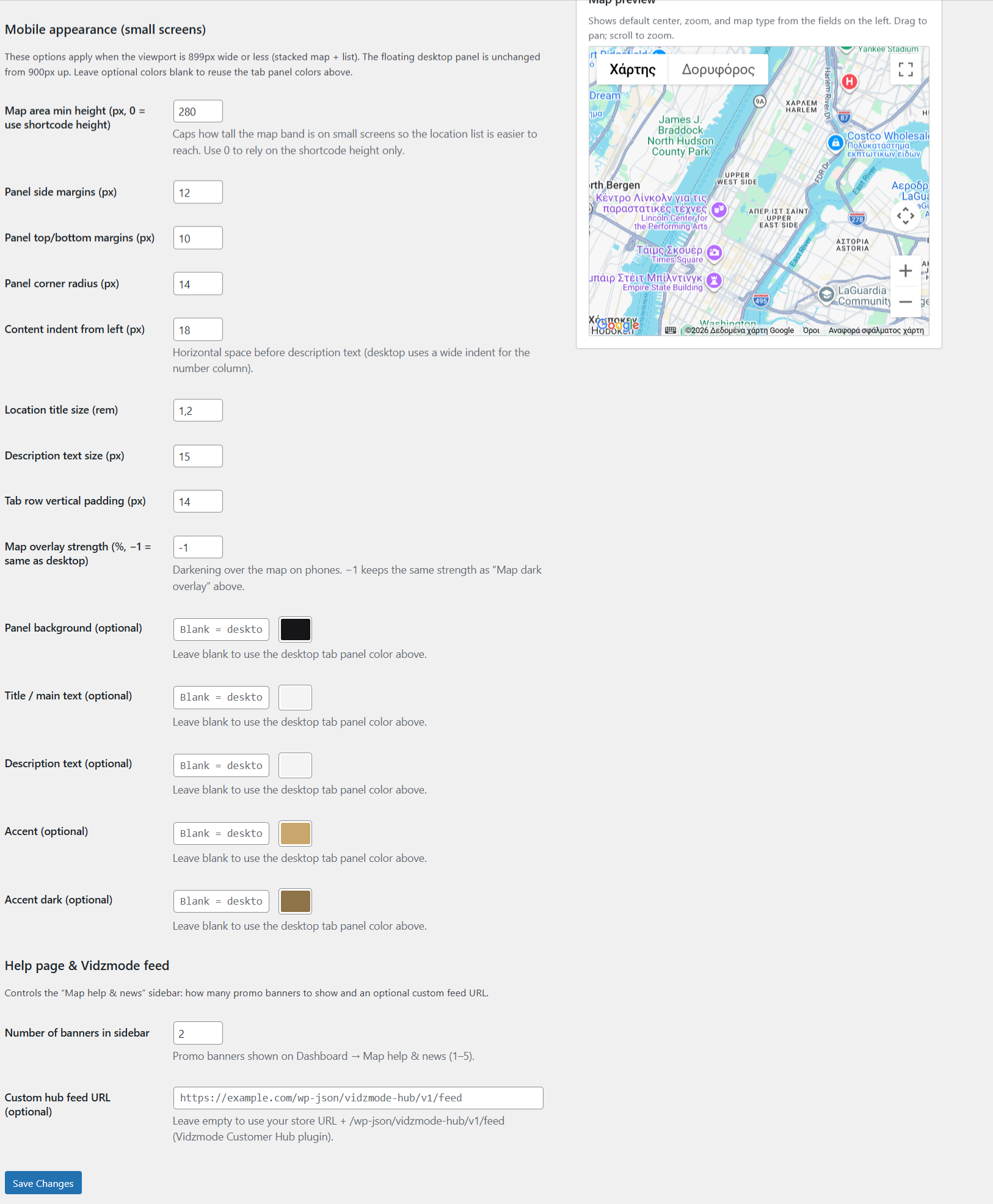
When you combine good content with accessible structure, more visitors can use the map experience comfortably on desktop and mobile.
Requirements: License + Google Maps JavaScript API Key
Before you install, review these requirements:
* **WordPress 6.0+**
* **PHP 8.0+**
* An active **license from Vidzmode**
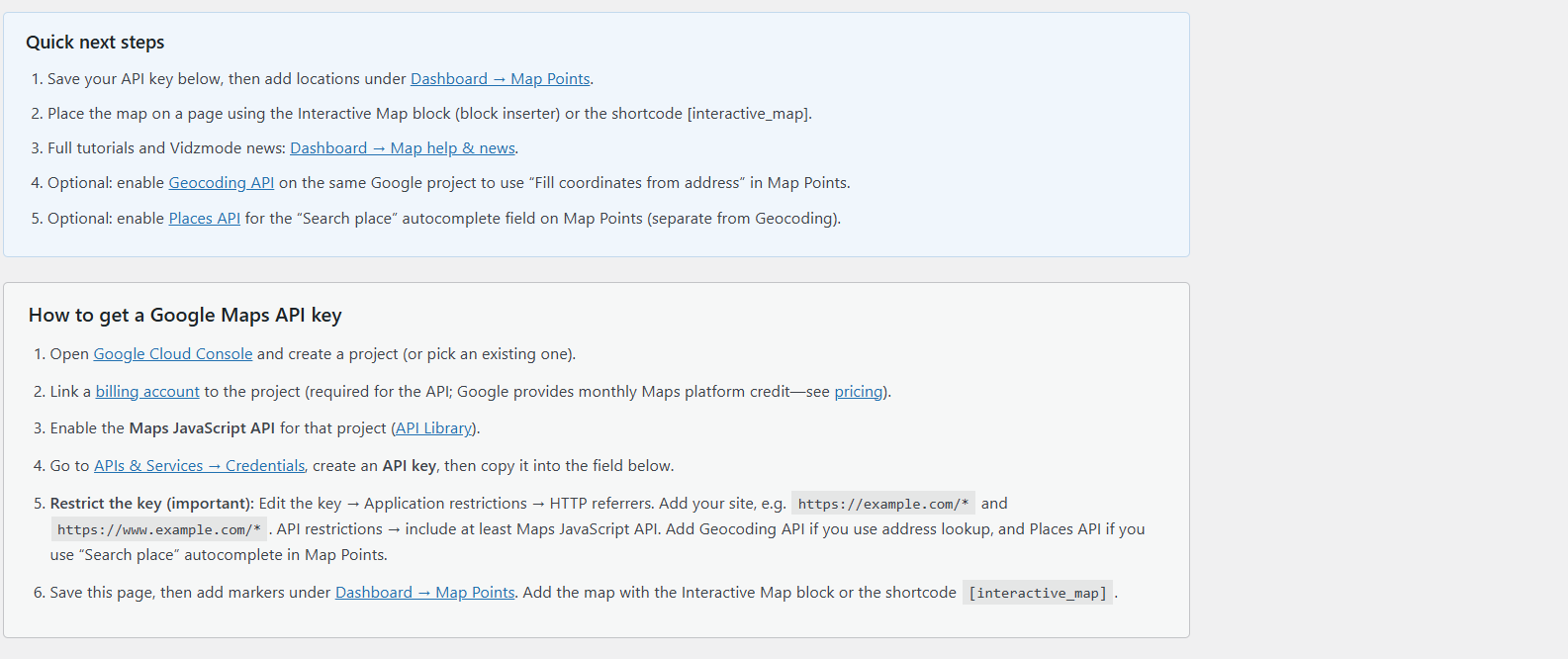
* A **Google Maps JavaScript API key** with billing enabled
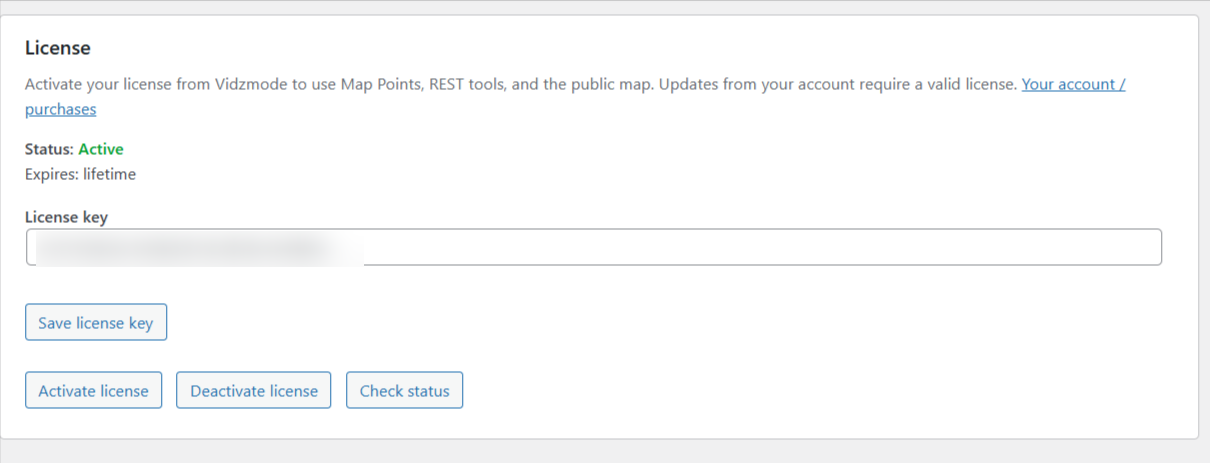
License activation matters: until the license is active, both the **Map Points** dashboard features and the **public map** stay disabled. This ensures the plugin’s map features follow the store’s licensing model.
Step-by-Step Installation and Setup
The installation process is straightforward and matches the plugin documentation:
1. Copy the `interactive-map-plugin` folder into `wp-content/plugins/` (or upload the purchase ZIP).
2. Activate **Interactive Map Points & Tabs** in the WordPress Plugins screen.
3. Go to **Settings → Interactive Map** and enter your **license key**.
4. Save, then click **Activate license**.
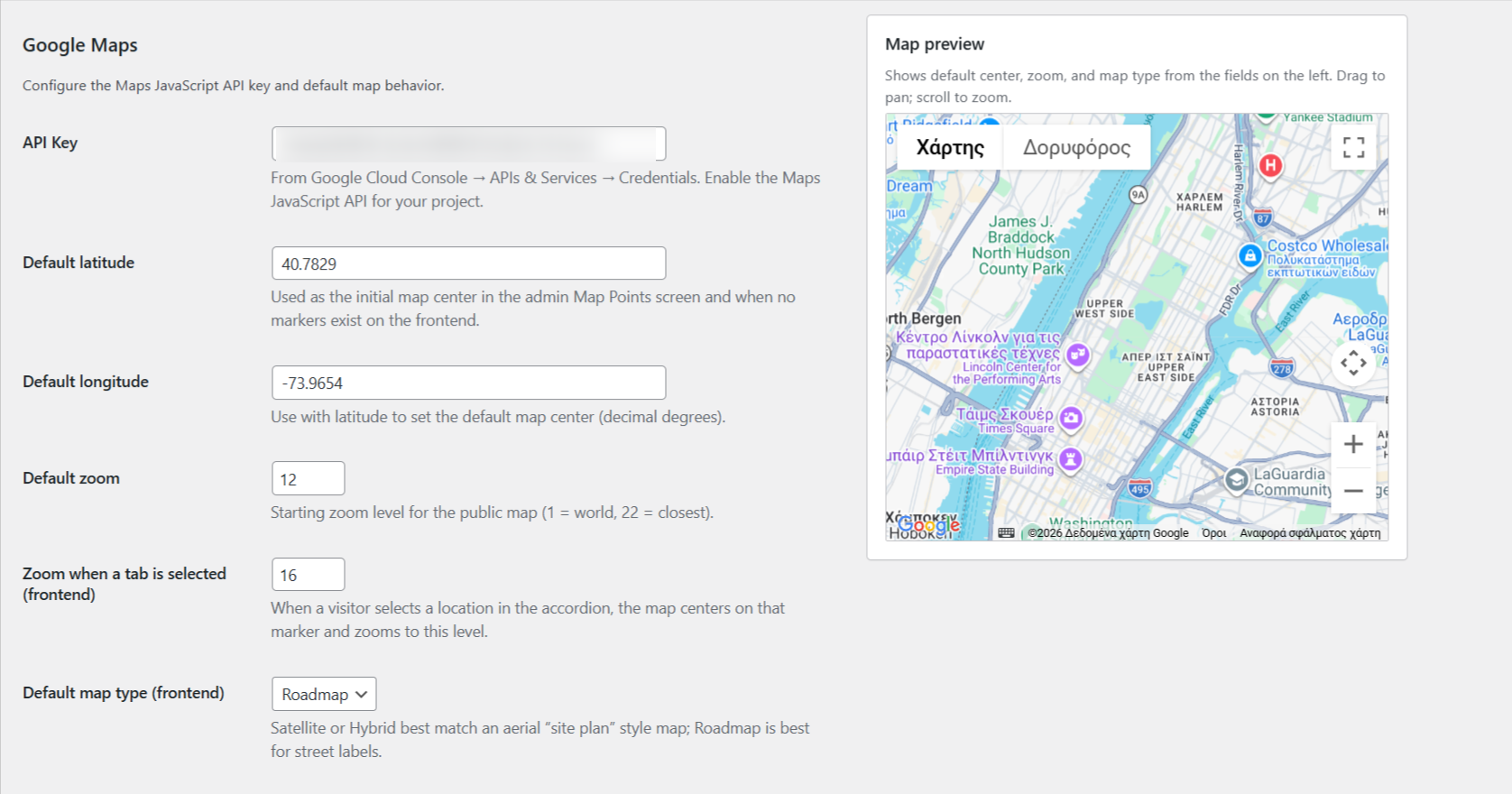
5. Add your **Google Maps API key** and configure default center/zoom/map type settings as needed.
6. Add your locations under **Dashboard → Map Points**.
7. Embed the map on a page using the **Interactive Map block** or the `[interactive_map]` shortcode.
For the complete walkthrough, see:
* `docs/installation.md`
* `docs/google-maps.md`
How the Map Experience Works for Visitors
Once everything is set up, visitors experience the plugin as an interactive location directory:
1. The map is displayed on your page (block or shortcode).
2. Markers appear based on your Map Points.
3. Visitors click markers on the map.
4. The **synchronized accordion/tabs** updates to match the selected marker.
Because the content is tied together, visitors don’t have to guess which list item belongs to which map location.
How to Manage Locations in Dashboard → Map Points
Admin usability is one of the strengths of this plugin. Here’s what you can do in **Dashboard → Map Points**:
* Click the map to add a marker.
* For each marker, edit the title and description.
* Add a link and icons to help visitors take the next step.
* Reorder rows to control the tab order and improve accessibility for keyboard users.
If you enabled optional Google APIs, you may also use address-based workflows:
* **Fill coordinates from address** (via Geocoding API)
* **Search place autocomplete** (via Places API)
Google Cloud Setup: Minimum and Optional APIs
The plugin uses the Google Maps JavaScript API in the browser for both:
* the public map, and
* the Map Points admin screen
Minimum API
* **Maps JavaScript API**
Optional APIs
If you want extra location workflows:
* **Geocoding API** for converting addresses to coordinates
* **Places API** for place search/autocomplete
Billing and security basics
Google Maps Platform requires billing enabled.
Also, your browser includes the API key in network requests, so you should strongly restrict the key:
* restrict by **HTTP referrers**
* restrict to the **Maps JavaScript API** (and any enabled optional APIs)
This doesn’t “hide” the key, but it limits misuse.
Developer Notes (If You Need Integration)
If you or your developer team want deeper integration, the plugin provides hooks:
* Filters: `imap_marker_data`, `imap_tab_output`, `imap_map_template`
* Actions: `imap_before_map_render`, `imap_after_map_render`
There is also an authenticated REST API namespace (`imap/v1`) for managing markers
(including CRUD and reorder operations),
and it requires a valid license and appropriate WordPress permissions.
Next Steps
If you’re setting up a locations page, store locator, or branch directory, the **Interactive Map Points & Tabs WordPress plugin** gives you a clean way to deliver map interactivity without sacrificing usability. Start by:
1. Activating the license in **Settings → Interactive Map**.
2. Adding your Google Maps API key (and enabling billing).
3. Creating your first Map Point under **Dashboard → Map Points**.
4. Embedding the map using the **Interactive Map** block or the `[interactive_map]` shortcode.
For full documentation and setup details, refer to:
* `docs/README.md`
* `docs/installation.md`
* `docs/google-maps.md