

subtitle

Blog

subtitle

Video BG
Removal

Remove the background from video using RVM (Robust Video
Matting). Runs offline with ONNX. Supports transparency (WebM
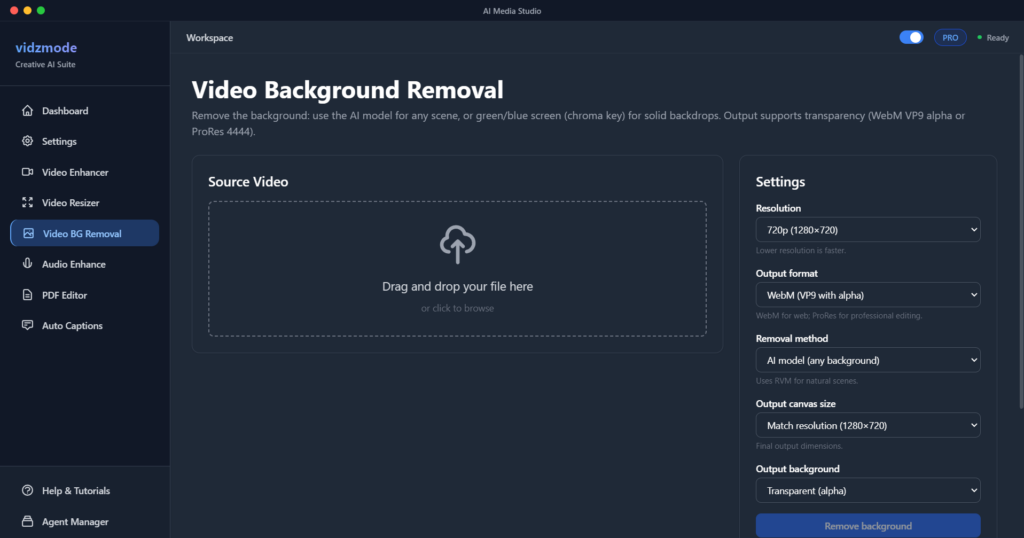
Remove the background from video using RVM (Robust Video Matting). Runs offline with ONNX. Supports transparency (WebM VP9 alpha or ProRes 4444), custom backgrounds (image/video/color), output canvas presets for social and web, and portrait resolution for Instagram Reels.


Key Features

  • RVM (Robust Video Matting) – offline ONNX inference
  • Resolution presets: 720p, 1080p, 720p Portrait (720×1280), 1080p Portrait (1080×1920)
  • Output canvas: Match resolution, Instagram Reels/Story (1080×1920), TikTok, custom
  • Background: Transparent, solid color, image, or video
  • Background positioning: Draggable background with scale control
  • Output formats: WebM (VP9 alpha) or ProRes 4444 (MOV)
  • Scene timeline: Keep/Delete segments, reorder output
  • Export with preview background: Save with checkerboard, green, white, black, or image/video to WebM/MOV/MP4
  • Send to Video Resizer for social format conversion
  •  

📋How to Use

  1. 1Navigate to “Video BG Removal” from sidebar or dashboard
  2. 2Add your video file (or receive from other tools)
  3. 3Select Resolution: 720p/1080p (landscape) or 720p Portrait/1080p Portrait for Instagram Reels
  4. 4Choose Output canvas: Match resolution, Instagram Reels (1080×1920), or custom
  5. 5Select Output background: Transparent, color, image, or video
  6. 6If using image/video background: Enable “Position background” to drag and scale it
  7. 7Mark scenes as Keep or Delete in the timeline
  8. 8Click “Remove background” and wait for processing
  9. 9Preview with checkerboard/green/white background
  10. 10Export: Save as transparent WebM/MOV, or “Export with preview background” to bake checkerboard, green, white, black, or image/video

💡Pro Tips

  • 💡Use 1080p Portrait (1080×1920) for Instagram Reels – processes at correct portrait aspect ratio
  • 💡Output canvas fills the entire frame – no letterboxing when using Instagram Reels preset
  • 💡Position background mode lets you drag and scale the background before export
  • 💡First run downloads the RVM model (~50MB)
  • 💡720p is faster; 1080p and 1080p Portrait give higher quality
  • 💡WebM with alpha works in browsers; ProRes for professional editing
  • 💡Export with preview background re-runs the pipeline with checkerboard, solid color, or image/video

Troubleshooting

Q: Output is letterboxed (black bars)

A: Select the correct Resolution (1080p Portrait for 1080×1920) and Output canvas preset (e.g. Instagram Reels). The system now composites at output canvas size for a full-frame result.

Q: Model not found

A: First run downloads the RVM model. Ensure internet connection. If it fails, check that the app has write access to its user data folder.

Q: Background not draggable

A: Enable “Position background” mode. The background layer will appear above the video for positioning.

Best Practices

Choose portrait resolution (1080p Portrait) when targeting Instagram Reels or TikTok
Use Output canvas presets for consistent social dimensions
Position your background before export for precise placement
Use transparent output for further editing; export with background for final delivery
Leave A Comment